
EVENTBINDER CAPTIONS
Live captions and
translation for events.
Put the speaker’s words on screen, with a presentation or in Conversation mode. Show the original language, a translation, or both.
Live captions require a license and an internet connection.
 EventBinder CaptionsTHE APP
GETTING STARTED
How to set up live captions.
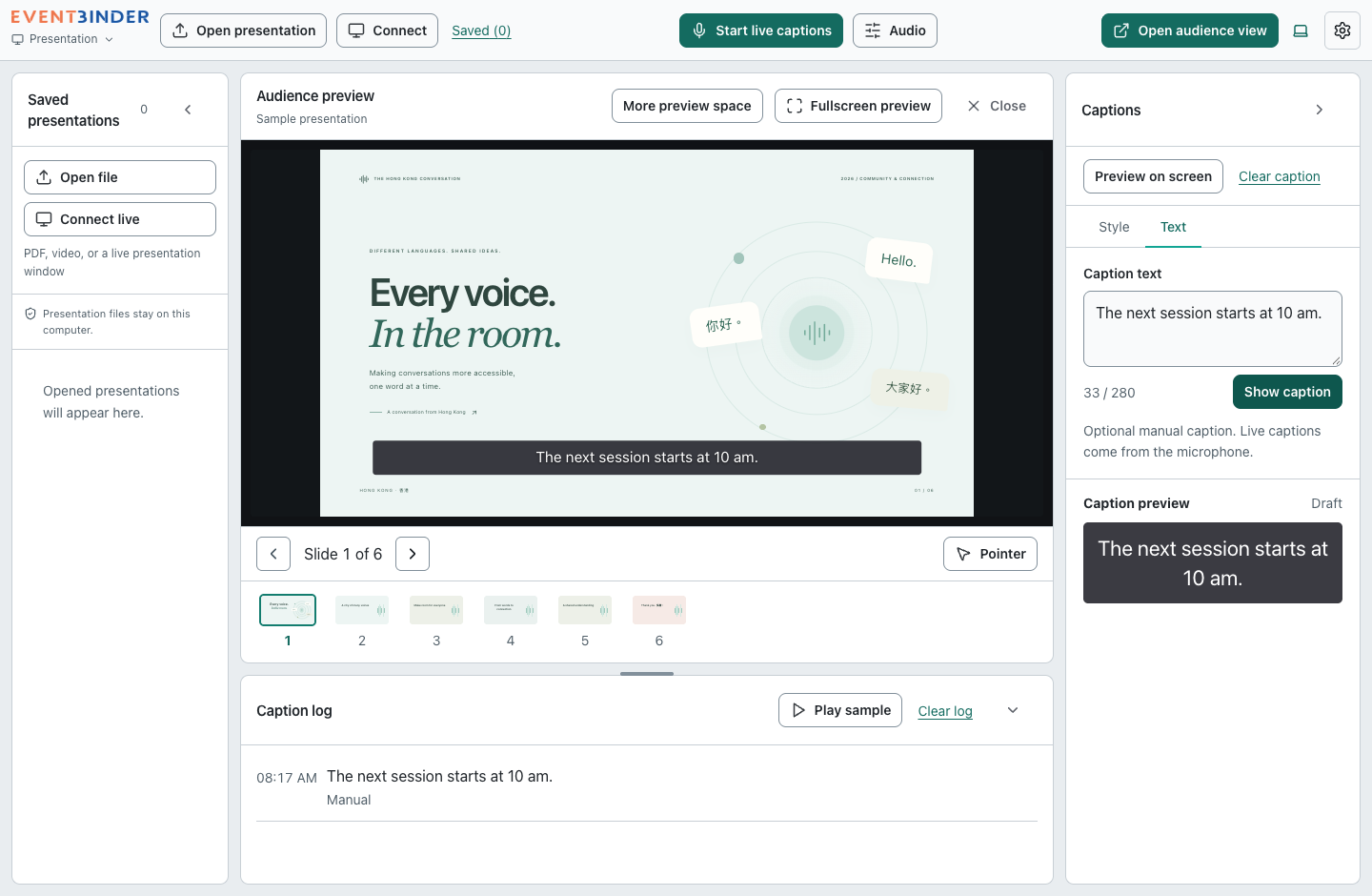
Choose Presentation or Conversation mode, select your microphone, then choose the spoken and caption languages.
- 01
Choose your session
Open a PDF or video, or share a PowerPoint, Keynote or Google Slides window. Choose Conversation mode for captions without slides.
- 02
Choose your microphone and languages
Select the microphone and main spoken language. Choose Cantonese + English, Mandarin + English, or all-three mixing when needed, then one or two caption languages.
- 03
Show captions on the big screen
Open the audience window on your projector or display. Start live captions when the speaker is ready.
DURING YOUR EVENT
Caption display options.
Show one or two languages
Keep the speaker’s language, add a translation, or show both. For example, display English and Traditional Chinese together.
Choose where the captions go
Place captions over the presentation, above it or below it. Adjust the text size and colours to suit your screen.
Keep the controls on your laptop
Check the microphone, change slides and read the caption log without showing the controls to your audience.
MAC & WINDOWS
Download the app.
The app is available as a preview. Contact us for a license before using live captions.
Electron — Full app
Presentation and live captions. Download the current version for your platform.
Rust (Tauri) — Experimental preview
A separate live-caption app in development. It uses separate settings and activation, which may use another device slot. Manual updates; presentation sharing is not included in the first preview.
In development — downloads are not yet available.
Mac preview bundle signing has been repaired. First launch requires manual approval; see the Mac installation steps below. Windows installation testing for this preview is pending. Live captions require a license and internet connection.
Mac preview: first-time installation
For the first installation, download the DMG, drag the app to Applications and open it. From 0.1.23, future updates can be installed inside the app. If macOS blocks a preview, use System Settings → Privacy & Security → Open Anyway.
If Open Anyway is unavailable and you trust this preview, first copy the app to Applications, then run this command in Terminal. It approves only EventBinder Captions:
xattr -dr com.apple.quarantine "/Applications/EventBinder Captions.app"This is an unsigned preview, not an Apple-notarized release. Managed company Macs may require IT approval.
TALK TO EVENTBINDER
Planning an event?
Tell us your event date, the languages you need and whether you use Mac or Windows. We can arrange a demo and discuss licensing.
[email protected]Email us to book a demo or ask about a license.
Open the form in a new window ↗Before you get started
Do I need an internet connection?
Yes, for live captions and translation. Your presentation files stay on your computer; the app sends speech audio to EventBinder’s speech service for processing. An active license is required.
Will my slide animations and videos still work?
Yes, when you share the presentation window. PowerPoint, Keynote or Google Slides continues to play the presentation, and EventBinder Captions adds captions to the audience view. PDF slides do not include animations.
Can I control it from another laptop?
Yes. Keep one host app running with the microphone and presentation. Open its separate audience links on laptops on the same network: presentation only in the centre, English captions on the left and Chinese captions on the right, for example. Each screen can choose its own language, size and fullscreen display. Audience screens do not start another speech session or use another license slot.
Can I use Traditional Chinese?
Yes. You can display Traditional Chinese captions on their own or alongside another language. The app’s controls are also available in Traditional Chinese.
How do app updates work?
The app checks after startup and every six hours. Use Check for updates in Settings, About, or the app menu. Enable automatic downloads if you prefer; installation remains your choice. From 0.1.23, choose Install and relaunch after captions, recording and screen sharing have finished. Saved presentations, settings and your license stay on the computer. Earlier versions need a one-time manual installation. Mac previews may require system approval; Windows installation testing for this preview is pending.